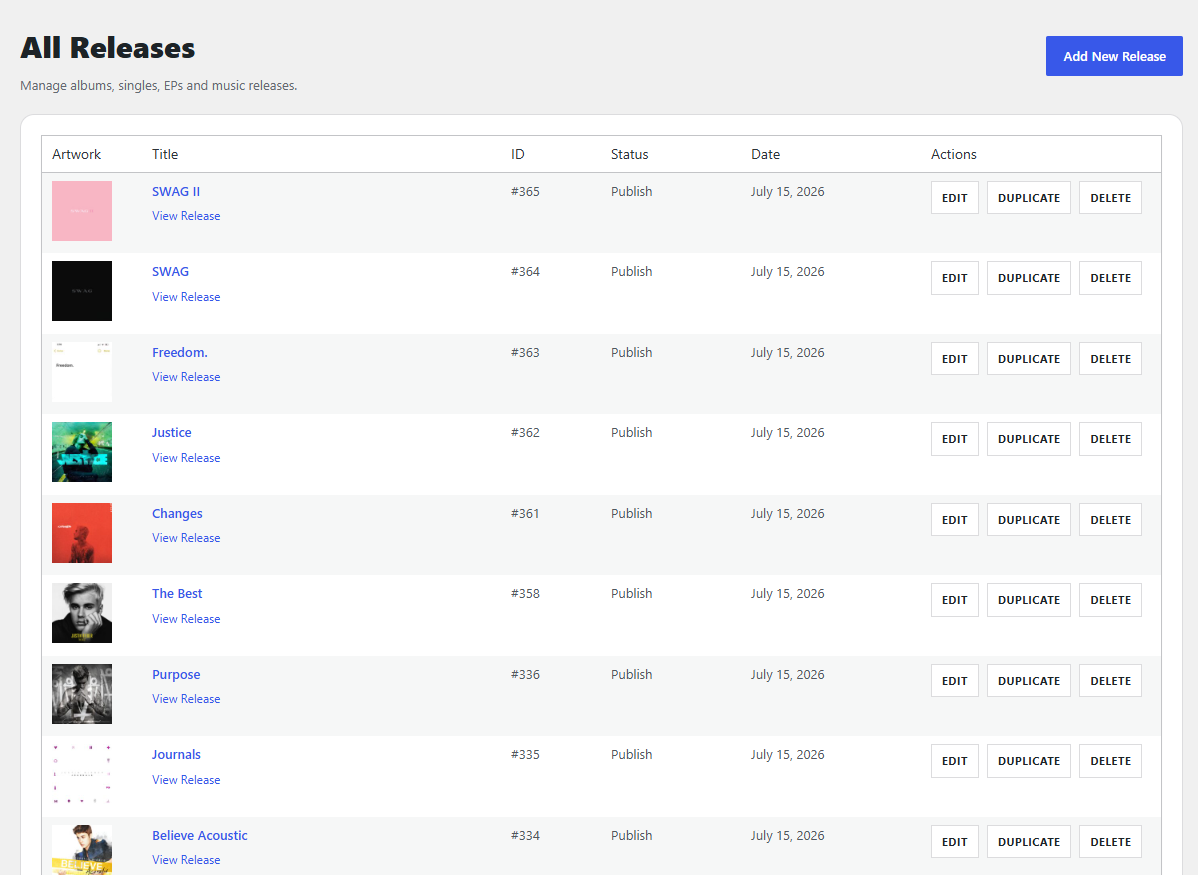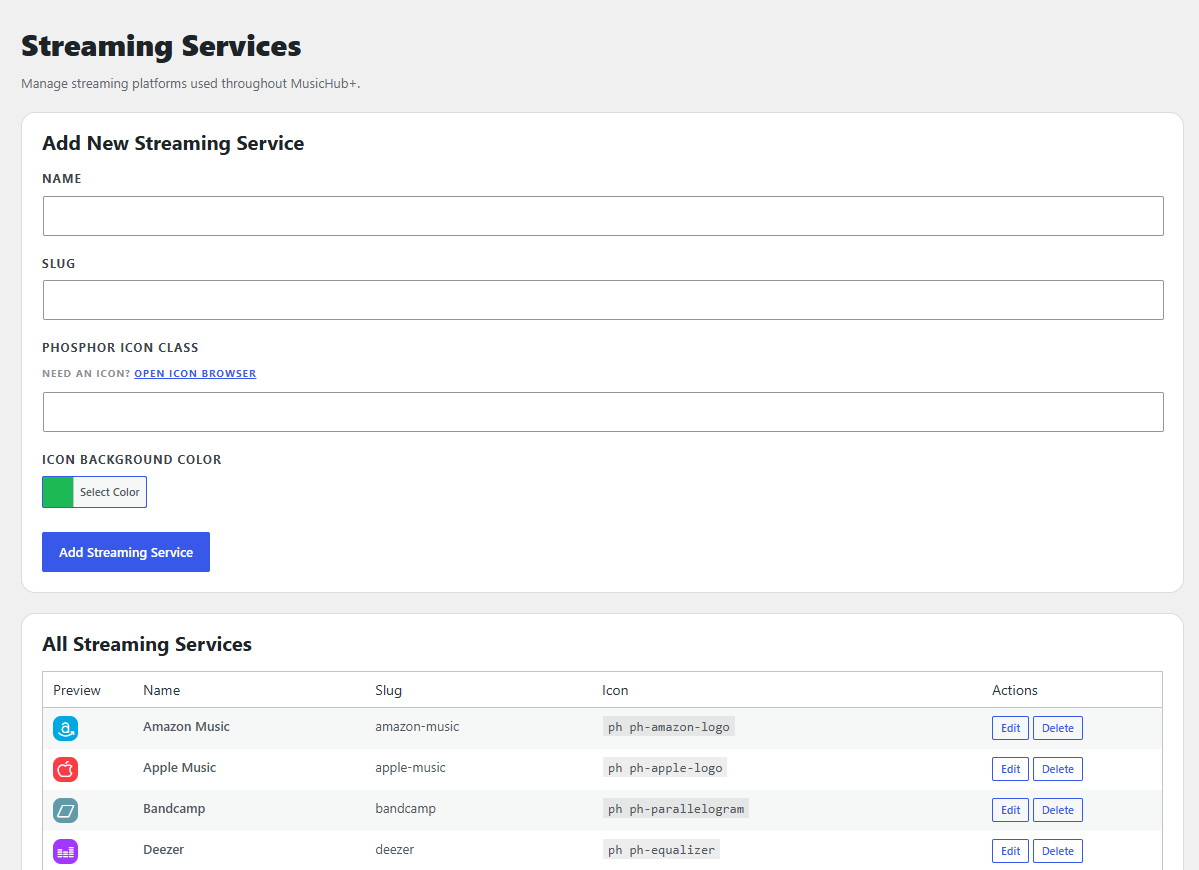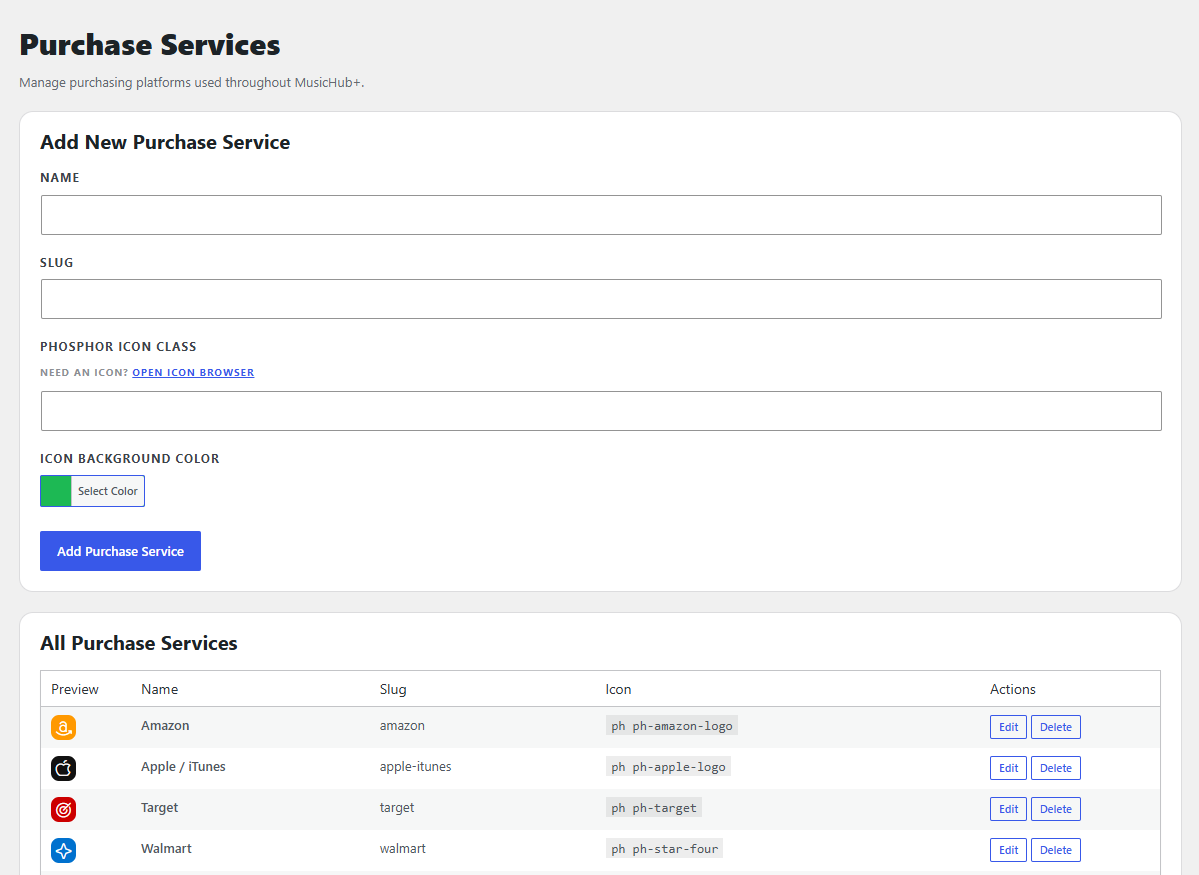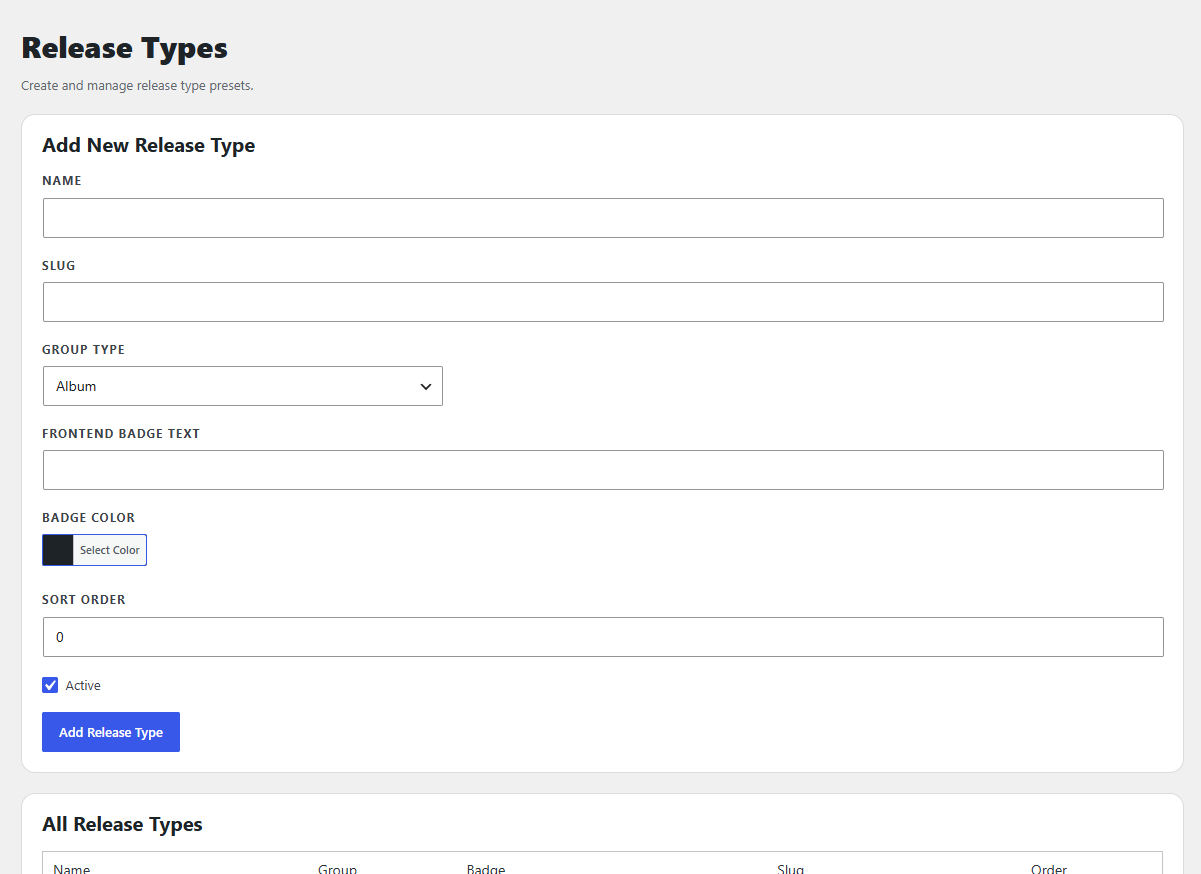
MusicHub+ is a WordPress Plugin that sets up a Music Streaming Guide for your Fansite!
MusicHub+ is the Music only version of StreamHub+!

PLUGIN NOTE: The Legacy Version will only continue to be able available through September 1, 2026.
musichubrem1

MusicHub+ is a plugin that is built for WordPress exclusively and allows you to set up a fully functional Streaming Guide of all of your celebrity’s discography. You can fill out tracklists, writers, producers and even more information than ever before along with being able to list all the places that their music is streaming!

Update Note

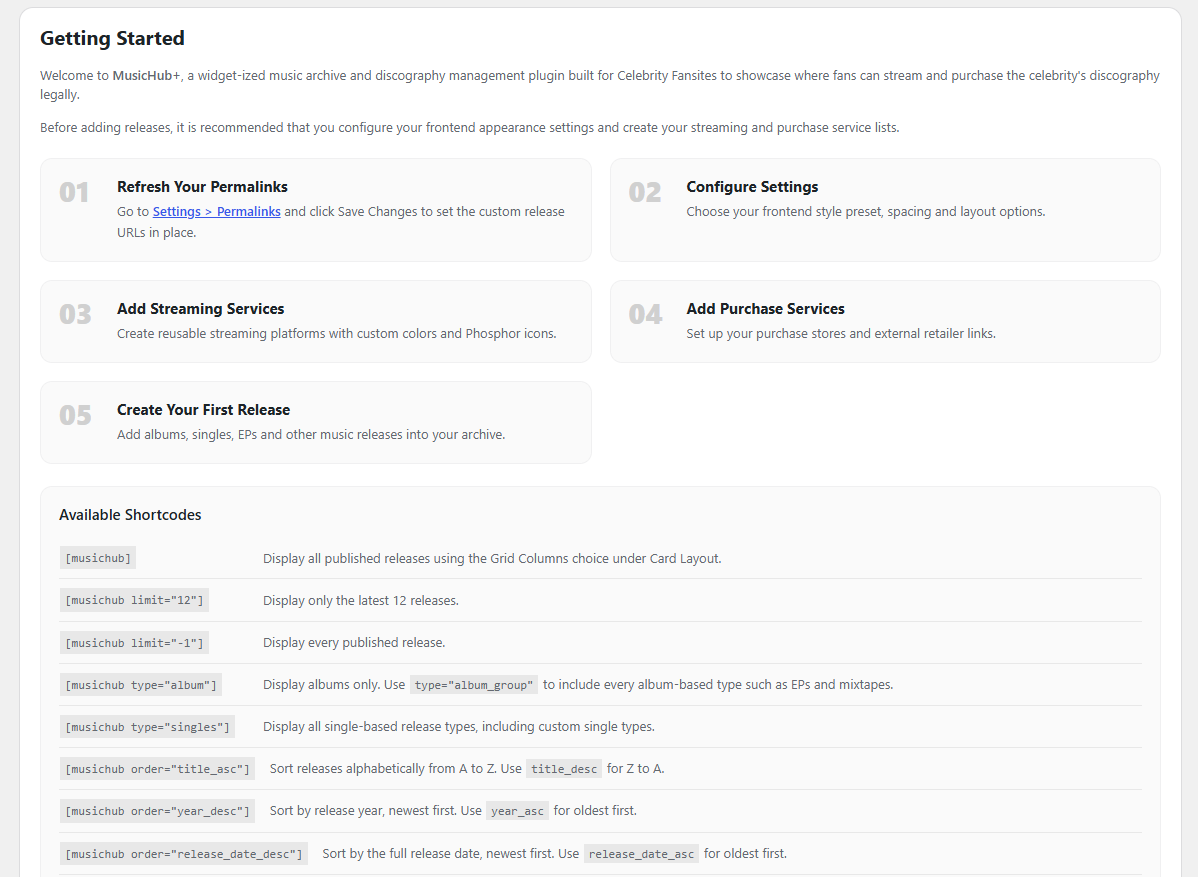
MusicHub+ has been completely remastered in the newest update which has bumped the version up to V1.0.0. Since this update, so much has changed in the plugin and therefore it required a complete overhaul of everything and a new rundown and screenshots.

PLEASE READ THE ENTIRE PAGE, It’s recommended that you upgrade to the Remastered Version and cease using the Legacy Version as it will not be updated any further.

IMPORTANT NOTE: If you have used what is now the Legacy Version of MusicHub+, then we have also set up an Import Feature to where you can completely import all of your information from the legacy version into this new update since it’s acting as a whole new plugin.

New Releases

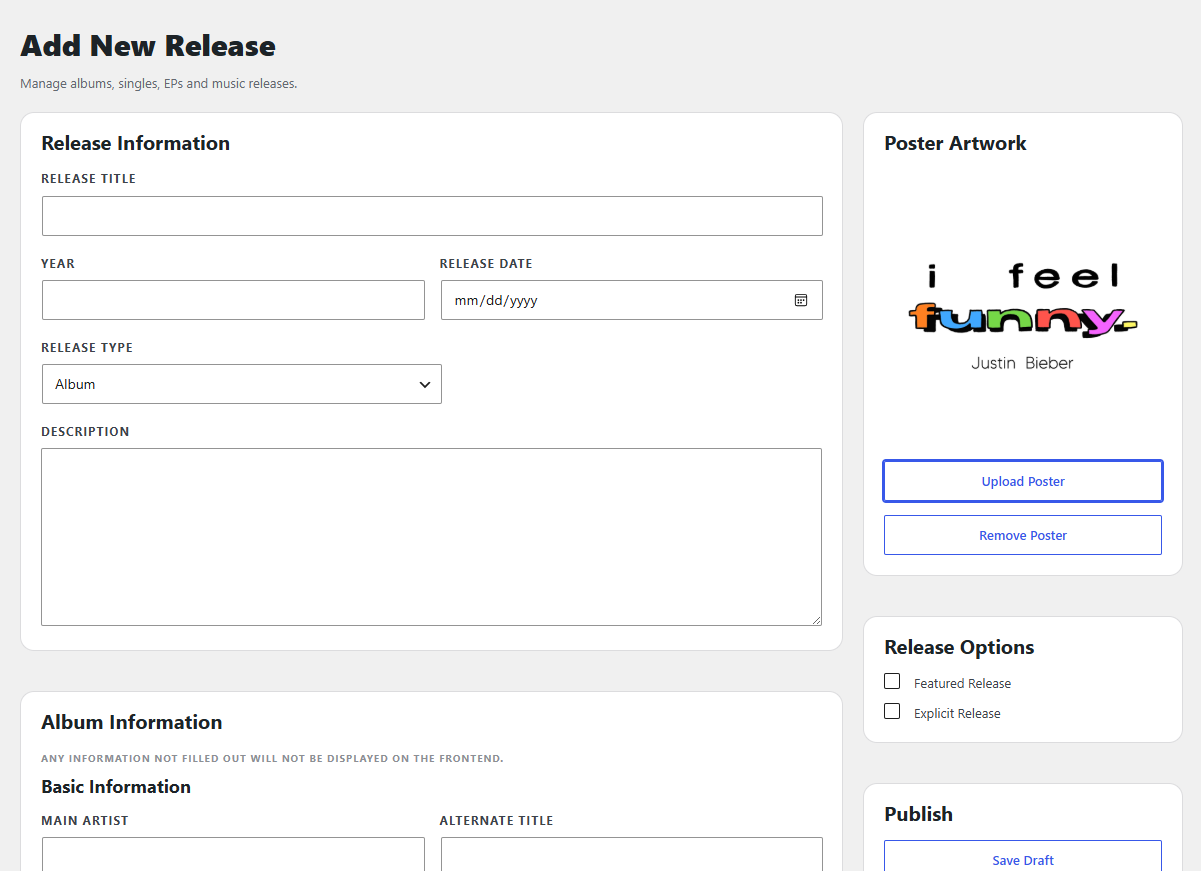
The main changes on the New Releases include options dealing with Albums or Singles and are based off which Release Type is chosen. Singles will feature options for lyrics, and the track list can be used for those that have a Single CD release where multiple versions are bundled together like Acoustic, Instrumental and others.

Settings

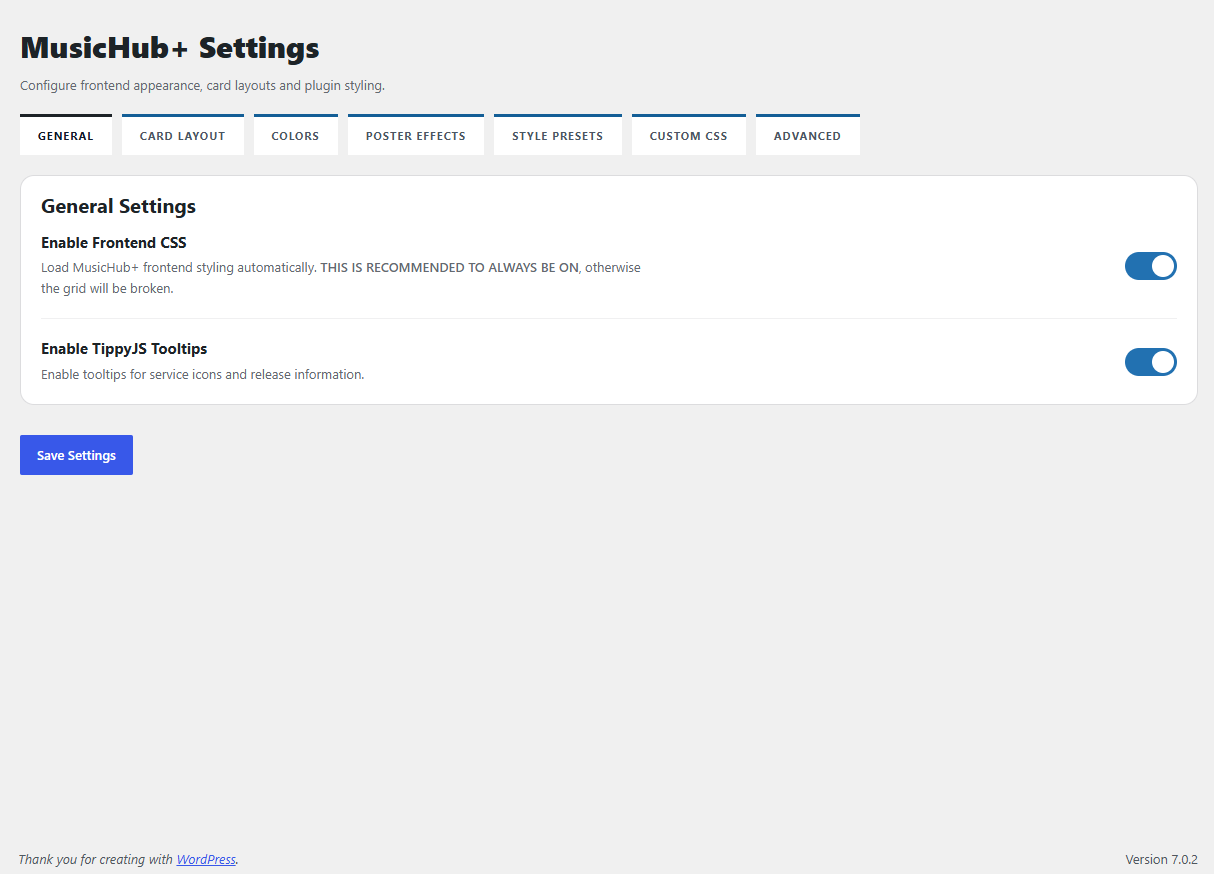
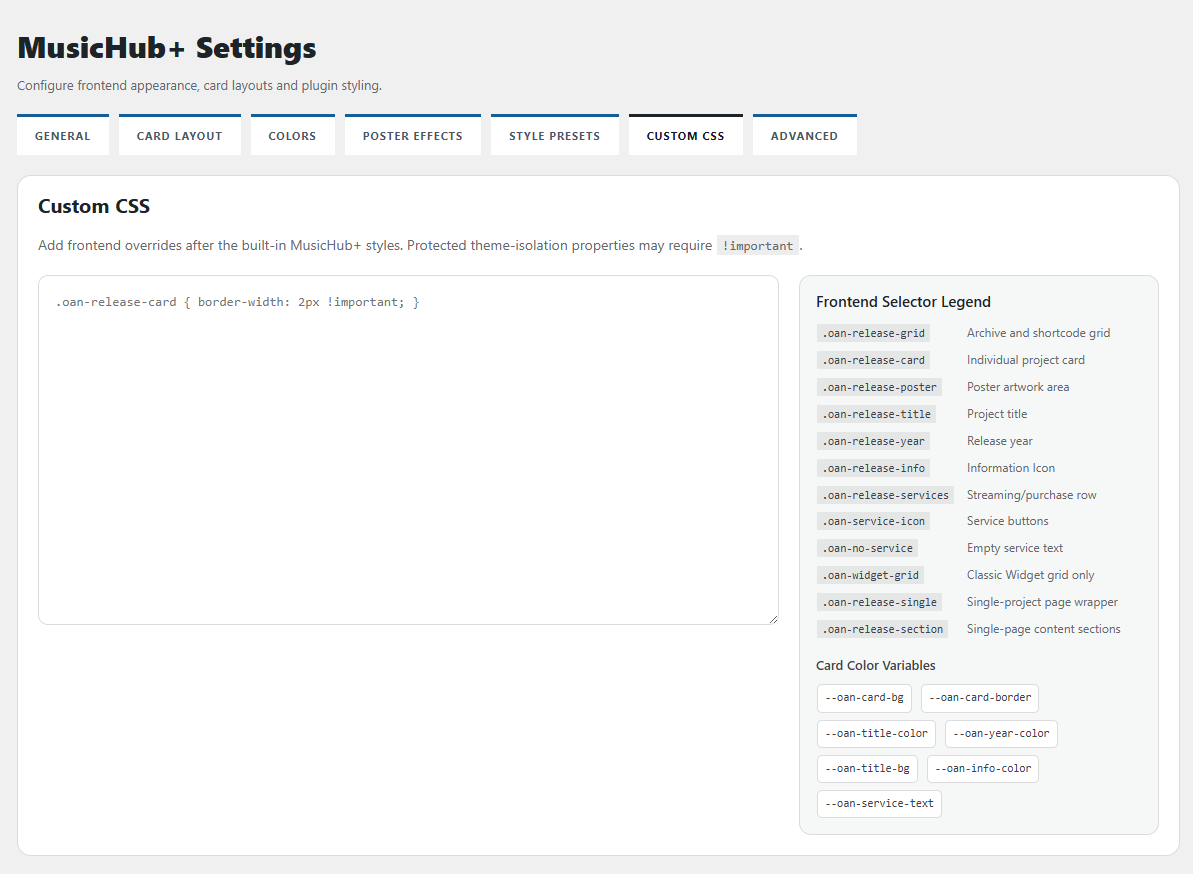
For Settings, please take note in these as there are multiple tabs targeting different areas of the plugin.

  • General Tab: This can primarily be left alone; these options were left for the advanced users.
  • Card Layout Tab: This controls Grid Columns (you can choose how many columns you want to display on the directory shortcode with the default being 3.), Card Style (rounded or square), Poster Style (rounded or square), Title Background Area (if you want the Title / Year to display a different background color.), Show Service Labels (if you want the card to say — Streaming: and Purchase: next to the icons), Show Phosphor Icons (if you disable this, it will show the first letter of each service.), Release Type Overlay Position (choose where you want to position the Release Type)
  • Colors Tab: Change all the relevant colors of the Grid and Cards, this affects both the grid and sidebar widgets. The Style Presets override these colors.
  • Poster Effects Tab: If you want to enable Grayscale, we give three options on various ways to display the grayscale.
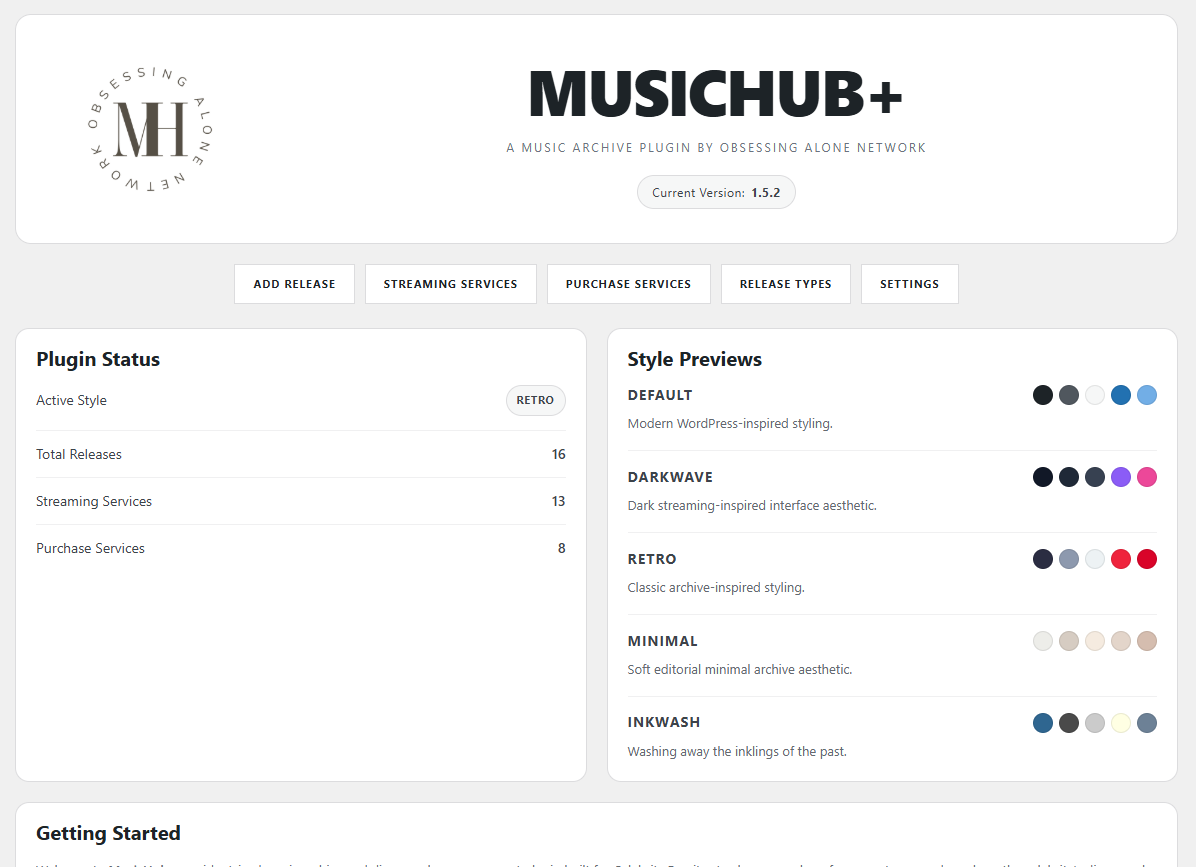
  • Style Presets Tab: We have included 5 preset color palettes, that you can decide on whichever one you want for easy coloring. This is to save you time in styling it yourself!
  • Custom CSS Tab: For advanced users, all relevant selectors and things you need to target are listed for quicker help.
  • Advanced Tab: Use Custom URL (for those who have their own pages built for the projects), Show “Not Currently Streaming” Text / Show “Not Currently Purchasable” Text (for those who want to showcase those missing from being able to be streamed or purchased.)

Icon Browser

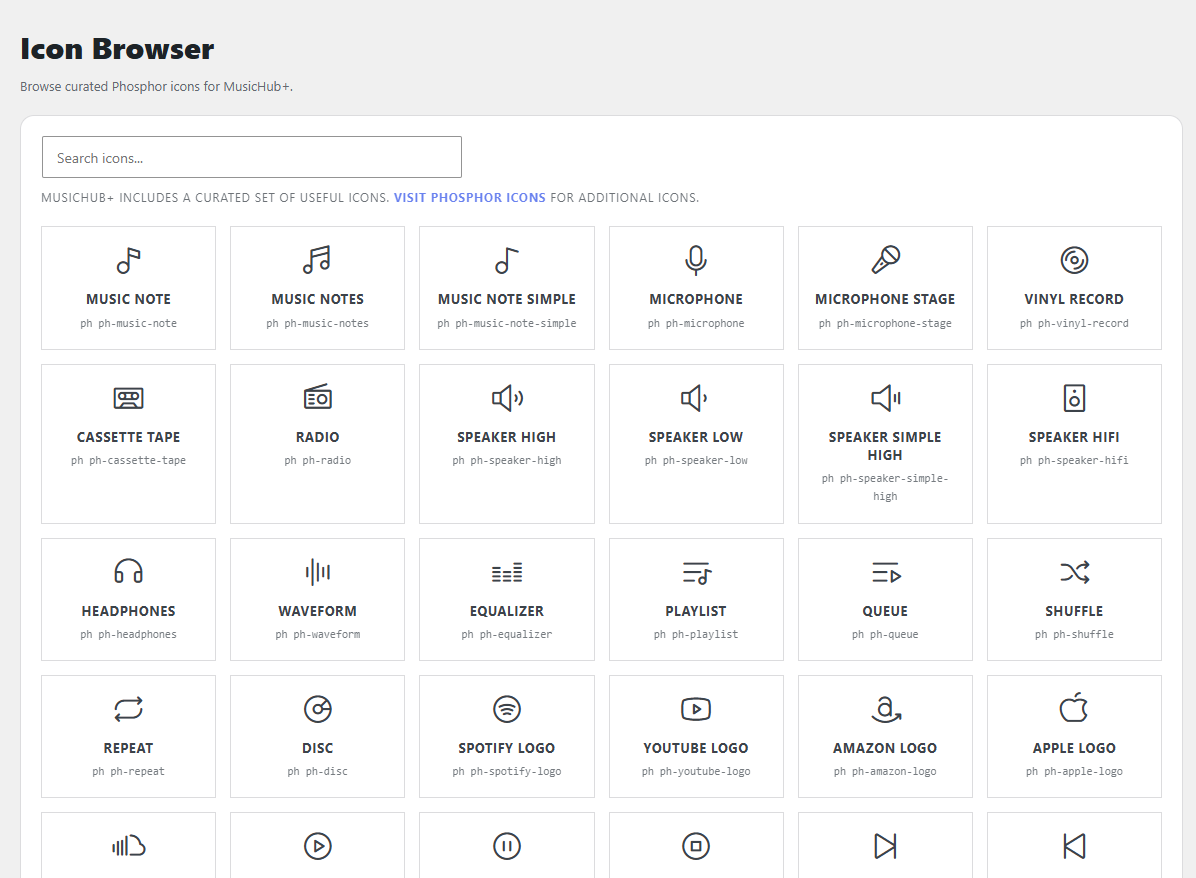
In a new addition to the plugin, we have included a huge Icon Browser that showcases icons from Phosphor Icons that relate to Music, you can click on any icon and it will copy the needed code (i.e ph ph-radio) for you to make your own Streaming Service, Purchase Service or other need for the icon.

Import Legacy (+ Custom URLs)

This is Important but only if you used the Legacy Version!

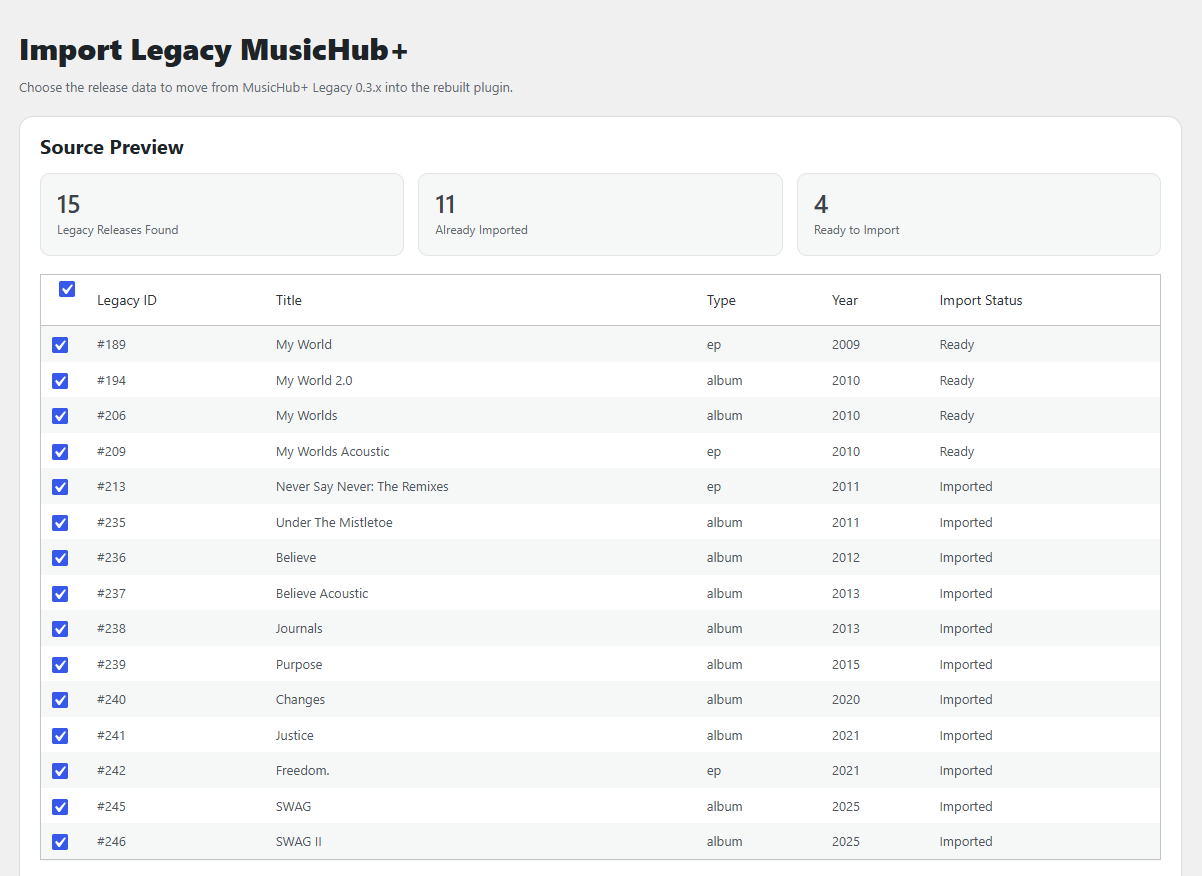
The Import Legacy feature requires the legacy version of MusicHub+ to be installed still so it can read your projects that you already created. It will list how many Legacy Releases were found, how many you already imported and how many are left to import.

You can also choose which aspects of Legacy Releases you want to import, and they will automatically be filled out in your releases when you go in to edit them and fill in all the extra information that you want.

If you use Custom URLs and choose to import those, it should automatically enable the Custom URLs option in the settings if you haven’t done so already. These Custom URLs will replace the plugin’s single release page so that you can use your own page.

After you successfully import, you can remove the Legacy MusicHub+. (Ensure that you keep the V1.0.0 version of MusicHub+ since the plugins share a name.)

Services & Types

Streaming Services and Purchasing Services have been upgraded with the default packaging coming with THIRTEEN of the most popular streaming services and EIGHT of the most popular purchase services. You still retain the ability to add your own with the color wheel and Phosphor Icon choice.

Project Types are the type of Album or Single, you can add any other type you want in any color banner. (Keep the name short though as they appear on your cover in the grid.)

Streaming Services (13) Featured:

  • Amazon Music
  • Apple Music
  • Bandcamp
  • Deezer
  • Melon Music
  • Pandora
  • Rakuten Music
  • Soundcloud
  • Spotify
  • Tidal
  • VIBE
  • YouTube
  • YouTube Music

Purchase Services (8) Featured:

  • Amazon
  • Apple / iTunes
  • FYE
  • HMV
  • Official Website (Your Celebrity’s Official Store)
  • Target
  • Walmart
  • WeVerse

Project Types (13) Featured:

  • Album
  • Anniversary
  • Compilation
  • EP
  • Holiday Single
  • Live
  • Mixtape
  • Remixes
  • Rerelease
  • Single
  • Soundtrack
  • Unreleased
  • Visual

Changelog

OAN-1.0.1 (August 10, 2026):

  • Fixes an issue causing the Icons to not display properly on the frontend.

OAN-1.0.0 (July 24, 2026):

  • The Remastered plugin has changed everything within the plugin and will present as a completely new plugin, therefore everything that has been changed is listed above in the new information.
  • Import Feature added for those using the Legacy Version to easily redo their Discography!
  • Legacy Version will be removed on September 1, 2026 from users to download.

OAN-0.3.1 (September 21, 2025):

  • Added missing output code for the Album Information link not displaying when set as “Bottom” position.

OAN-0.3.0 (September 14, 2025):

  • Initial Release

StreamHub+

StreamHub+ is a WordPress Plugin that sets up a Streaming Guide for your Fansite!

[responsive-slider id=207]

Have you ever wanted a streaming guide on your fansite but was unsure on how to set one up so that it looked nice? Well now you can set up a full guide that you can load with all their projects, even if it’s not currently streaming.

Are you only interested in the features of the plugin? Take a look below at what it features before everything gets explained:

  • Supports 22 Streaming Services (+1 Custom Option)
  • Project Categories
  • Streaming Tags
  • Widget Ready (for featuring in your Sidebar)
  • Shortcode Ready (for featuring within pages of your site)
  • Ability to link to your Career Archive pages of each project
  • Alphabetical, Random or Date Added project sorting
  • Customization for colors and other features.
  • Custom CSS editor (for advanced users)
  • Display links to several streaming services at once
  • Not on Streaming Services? No problem! There’s a “Not Streaming” text!
  • Drag & Drop your Streaming links to display them how you want!
  • Start Year / End Year for Television Series
  • Multiple standard styles for different displays.

Features Explained

StreamHub+ supports over 22 Streaming Services that are already pre-built into the plugin without the need for you to add anything! Want to see all the streaming services that are already supported? We have a submenu under Projects that list them all for any time after use as Streaming Services.

The Streaming Services tab can be ignored as you shouldn’t need to add anything to it. The full list of services are below but we also feature a Custom label that allows you to do any different streaming service. (More can always be requested through the Contact page to add if any were missed!)

  • AMC+
  • Apple TV+
  • BET+
  • Crunchyroll
  • Custom Label (Add your own)
  • Disney+
  • GagaOOLala
  • Hallmark+
  • HBO Max
  • Hulu
  • iQiyi
  • Lifetime
  • Netflix
  • Paramount+
  • Peacock
  • Plex
  • Prime Video
  • Showtime
  • STARZ
  • Roku Channel
  • Tubi
  • Viki
  • YouTube

Project Categories will be showcased as Movies, TV Series, Short Films, Podcasts, or Talk Shows. You can add or remove as you need to. This is vital if you would like to sort your projects out by what type it is and you will select this category in the Add/Edit Project screen.

Streaming Tags come from the Streaming Services and has a dedicated space under the Add/Edit Project screen as well, this is vital to sort your projects by what streaming service they’re on. For example, showcasing all the celebrity’s projects that are on Netflix using the shortcode that supplies all Netflix projects.

Widget Ready & Shortcode Ready make this possible to be featured in your Sidebar (widget) or on any page on your fansite through the various shortcodes that are available to use.

Career URL is recommended to use for each project as this will link them to your page in your Career Archive where you display all the information about that project. If no URL is used, it will link to the post page of the project which will display nothing, but the featured image stretched as of V0.6.0 (initial release).

Project Sorting has three unique options: Date Added, Alphabetical and Random. This is how the projects display when the shortcode or widget is used.

  • Date Added will display the projects in the order that you added them such as if you added The Untamed, Big Hero 6, Descendants and The Proposal in that order, it would display on preview in that order.
  • Alphabetical lists the projects in order from A to Z. This would put the projects in order like Big Hero 6, Descendants, The Proposal and The Untamed.
  • Random would list the projects in a random order.

Customize & Custom CSS are for customizing how the streaming guide displays. In Customize, it’s sorted out by Posters, Overlay & Effects, Labels & Text, Colors, Ordering and Compatibility & Editor. This features various options to color, remove, add or change the look of the style. Custom CSS shows the CSS that advanced users can change if they understand how CSS works. You DO NOT need to change or edit anything in Custom CSS.

Display Multiple Streaming Services provides you with the option to list all the streaming services that the project is able to be watched on. If One Piece is available on Crunchyroll & Netflix, then you can add both options to the Availability section when adding or editing a project and tag them as such! This will display an icon under the title and year with buttons linking to those sites.

You can also Drag & Drop Streaming Services while editing them in the Availability section if you have multiple options listed.

Not Streaming? No problem! If it’s not streaming anywhere but you would still like to display the project with the others, simply do not fill out the Availability section when adding (or editing) the project and save. Text that reads Not Streaming will display instead of linked buttons to the streaming service and will still look nice in the various Styles of Display that we have.

A cute idea that we also implemented for Television Series is the ability to add a Start Year & End Year for the time that the series was on and your celebrity starred in it. If they were only on one season or in an episode, just use the Release Year (single) option when adding or editing the project. If they spanned multiple seasons over multiple years, leave the Release Year (single) empty and fill out the Start Year (TV) and End Year (TV) instead. Is it a currently airing series that will continue in the future? Leave the End Year (TV) box blank and on the front end on display, it will show “2023 – Present” instead of an end year!

Use Stack Years (TV-style) for the Start/End Years to stack on top of each other on display, this a per-project option and can also be unchecked for a standard in-line style which you can switch between Pill Button, Inline Compact and Subtitle option through the Settings page.

Changelog

OAN-0.6.6 (September 4, 2025):

  • Version has been upgraded to 0.6.6
  • Duplicate option added to Project List, easily duplicate your projects!
  • FIXED: Streaming Services that were added by the user (via Projects → Streaming Services) will no longer appear on a white background with the new Icon/Overlay Color option.

    The FIX added an additional field to creating/editing a Streaming Service that you can use for the background color SO you don’t have to fill out the field each time in individual projects.

OAN-0.6.5 (September 1, 2025):

  • Version has been upgraded to 0.6.5
  • Custom Label TV Icon was updated to reflect a nicer looking TV
  • Custom Pill Badge (on Poster) now has a background instead of just being text.
  • Ribbon Banners were added to reflect a ribbon on the upper left corner of the poster, there’s 5 presets: Most Awarded, Most Popular, Most Watched, Most Nominated & Top Favorite. You can also create your own custom text for it to say whatever you wish.
  • Ribbon Banners are assigned when Adding or Editing a project.
  • Color Settings for Text + Banner color were added to the Settings Page.
  • Color Settings for the Icon/Overlay Colors can now be changed when Adding or Editing a project and these are per project, meaning that each project can have different colors. Defaults will be used if you do not change the color.
  • Streaming Services that were added by the user (via Projects → Streaming Services) will no longer appear on a white background with the new Icon/Overlay Color option.
  • Tooltips now have a style instead of being defaulted to the browser settings, they also have a setting in the Settings page.
  • Ability to sort by YEAR has been added! You can now add order=”year_asc” (ascending meaning the year counts up: 2012, 2015, 2018) or order=”year_desc” (descending meaning the year counts down: 2025, 2020, 2018, 2017) to your Shortcode on any page that uses it.
  • In StreamHub+ → Settings: Fields to customize Tooltips, Ribbon Banners, Year Pill, Card Container (Border px, Border Color and Container Background)
  • In StreamHub+ → Settings: An option for Grayscale Posters that become color on hover was added. (Thanks, Deanna for the idea. x) 
  • In StreamHub+ → Getting Started: A new header was added while tweaking the containers on the page to appear more spaced out and not look so cluttered.

OAN-0.6.0 (August 29, 2025):

  • Initial Release

Classic Widgets

Classic Widgets is a WordPress Plugin created by the WordPress Team. The sole purpose of the plugin is to set the WordPress Widgets settings screen to the classic set up while disabling Gutenberg Blocks altogether in the Widget areas.

Due to recent WordPress changes in their core coding, some features broke with each update and the update that I bring forth is the one that fixes some of these issues.

Original Description:

Classic Widgets is an official plugin maintained by the WordPress team that restores the previous (“classic”) WordPress widgets settings screens. It will be supported and maintained to 2024, or as long as is necessary.

Once activated and when using a classic (non-block) theme, this plugin restores the previous widgets settings screens and disables the block editor from managing widgets. There is no other configuration, the classic widgets settings screens are enabled or disabled by either enabling or disabling this plugin.

Now, there are some things that have changed from its original form as Version 0.4.0 / 0.4.1 introduces a brand-new Settings page that has two changeable options!

Under Settings → Classic Widgets, you see two new options that help expand the use of the iconic Classic Widgets plugin:

  • Disable Block Widgets: This option will allow you to Enable and Disable the Classic Widgets quickly without the need to deactivate the plugin itself. It’s checked automatically to enable the classic look of the widgets area. Unchecking the box will enable the Gutenberg Blocks to return to your widget areas.
  • Sticky Active Widgets Panel: This option will allow you to sticky the Active Widgets panel so that they scroll with you and you no longer have to scroll back up after adding a new widget to your sidebar. The Top Offset is the space between the top of the browser and the Active Widgets. 32px is the default offset and you can always increase for a bigger gap or decrease for a smaller gap.

Along with the Sticky option returning and a Settings page being added, other features include complete compatibility with PHP 7 and above, as well as WordPress 6.8.x. and other recent releases.

REMINDER: This plugin uses the same data as the existing plugin, therefore you can just go to Plugins → Add Plugins → Upload Plugins → Upload the ZIP file. It will read that you already have the path and will ask if you want to accept these changes that it displays, accept the changes and you’re good to go!

Changelog

— Keep in mind that only 0.4.0 and above are updated by Obsessing Alone Network. Previous versions have no support from me.

OAN-0.4.6 (December 26, 2025):

  • Updated the Settings Page to fit the new Obsessing Alone Network Branding. This will be consistent across all plugins.
  • The Sticky Widgets now automatically apply upon installation of the plugin.

OAN-0.4.5 (November 19, 2025):

  • Fixed the Settings Page to ensure it’s more organized.
  • Changed Author / Description of Plugin
  • This update was just to make the Obsessing Alone branding more cohesive since WordPress still has not accepted the update itself.

OAN-0.4.1 (August 9, 2025):

  • Fix for the Settings to actually apply changes.

OAN-0.4.0 (August 9, 2025):

  • Initial Release
  • Made compatible with later WordPress versions and PHP 7 or later.
  • Settings page added.
  • Sticky Panel with configurable offset added.